Guide for HR Team: Replacing Org Chart on the CUFO Site
Updating the org chart posted on this site's About Us page is very simple, but the process can seem a little confusing at first. The step-by-step instructions below will guide you through the process.
Video Tutorial
Step-by-Step Instructions
- First, log in to the website using your UNI and password at https://cufo.columbia.edu/user
- The most important part of the update process is that the org chart be given a specific file name prior to uploading. The links on our site pointing to the org charts point to the file using its file name. By keeping the file name the same when uploading updates, the links will continue to work correctly. If you change the name of the file before uploading a new version, you will also need to update the link to point to the file under the new name
- To keep things simple, name the file Executive_and_Senior_Staff_Org_Chart.pdf each time it is uploaded.
Once you've confirmed that the file is named correctly, proceed with the steps below.
In this next series of steps, you will be:
- Accessing the file storage area of the website
- Navigating to where the current versions of the org chart are stored
- Deleting the current version of the org chart
- Uploading the updated version.
Completing all of these steps will correctly replace the org chart on the site and ensures it is accessible to users.
1) To access the site's file storage area, click here (in some browsers this will open a new tab, in others it will replace these instructions—right click the link and choose Open In New Tab if that happens.) You should now see a window similar to the one below.
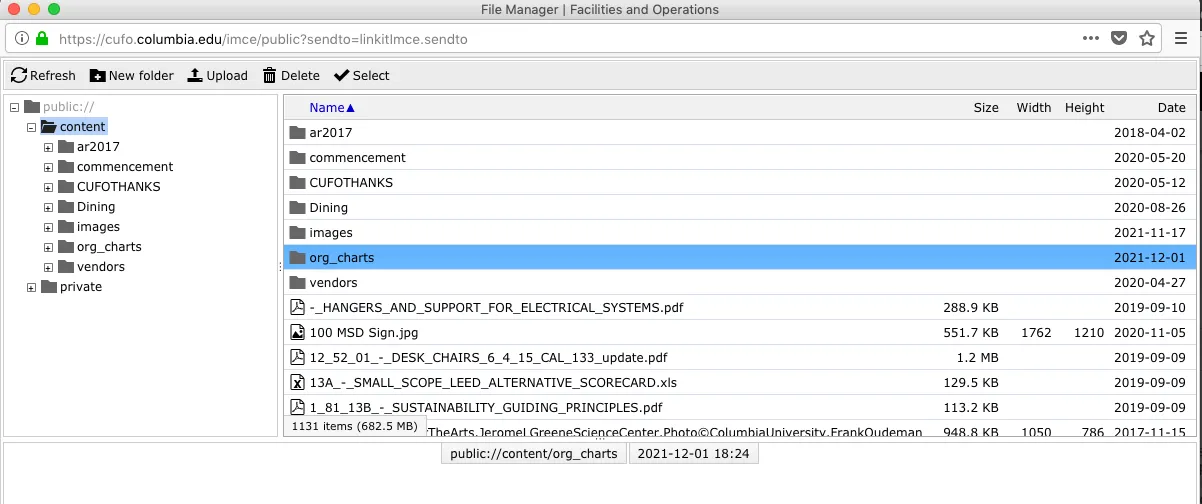
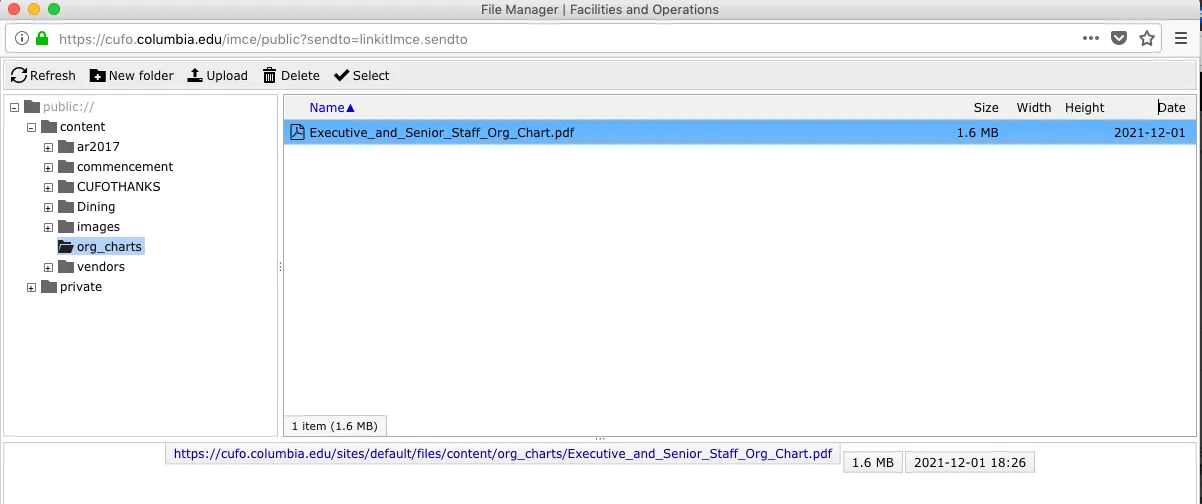
2) On the left hand side you will see a menu showing the folder structure of the site. One of the folders shown is called "Org-Charts". Click once on Org-Charts to display the contents of the folder.
3) Uploading a new org chart into this folder will not overwrite the currently uploaded file, so we need to delete the existing pdf prior to uploading the replacement file. To do so, click on the PDF org chart in the file browser so that it is highlighted. Then click the Delete button in the menu. Confirm that you want to delete the file.
4) Once the current org chart is deleted, click the Upload button in the menu. A button with the text "Add File" will appear - click that button. A window will appear allowing you to browse your hard drive to locate the new org chart to be uploaded. Once you have located it, click Open.
5) Confirm that you see the org chart with the correct file name in the File Upload Manager window, as shown below. If so, you have successfully finished updating the file and can close the File Upload window. Thanks!